The short answer
The GDSense panel lives in Godot’s upper-right dock and has three main tabs: Chat for requests and responses, History for saved conversations, and Settings for your API key, context, and editor preferences. In Chat, the top controls start a new conversation, open Refactor History, choose Chat or Agent when your account supports it, select a reasoning level, insert context commands, and send a request. Chips above the prompt box show the open script and project map that will go with your next message.
Chat is the primary work area
The Chat tab keeps the current conversation, request controls, context indicators, and prompt editor together. Start here for questions, explanations, debugging help, and tasks about your project; the open script and a compact project map are attached for you, and context commands add anything else.
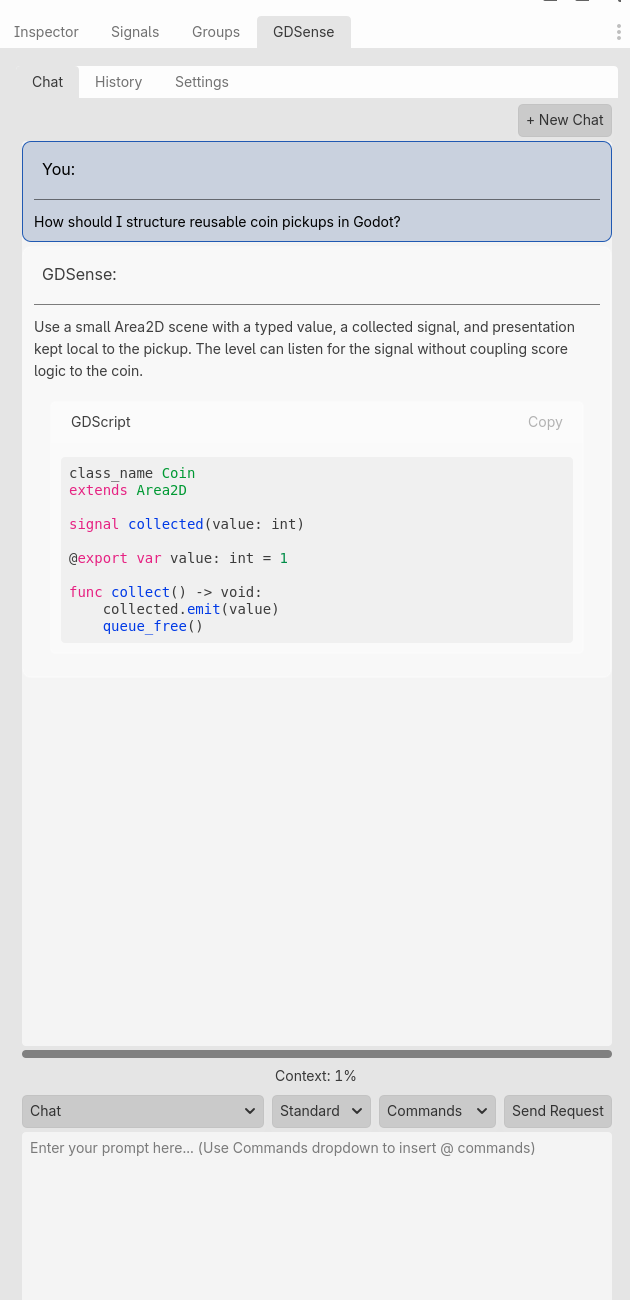
- + New Chat ends the current conversation and gives the next task a clean thread.
- Refactor History opens a browser of the refactors you accepted in this editor session, with the original and refactored code for each one.
- The mode control keeps Chat available and shows Agent access according to the account.
- The reasoning control offers Standard, Thinking, and Max choices when available.
- Commands inserts @file, @selection, @openscript, @scene, or @node into the prompt.
- Attachment chips above the prompt box name the open script and the project map; select × on a chip to leave it out of the next message.
- Send Request sends the prompt; Enter also sends, while Shift+Enter inserts a new line.
Read the status indicators before sending
The context meter shows how much of the model’s context window your next message will use, measured on exactly what GDSense will send: the conversation, its summary in long chats, automatic attachments, and anything you attach. A short line under the meter tells you when older messages will be summarized on the next send. A separate credit bar shows the remaining account balance for the current billing cycle.
Hover over a chip for details: the script’s full path or the first lines of the project map. When a chip’s tooltip says it is already in this conversation, that attachment is not sent again until its content changes.
Keep in mind: Context capacity and account credits answer different questions: one describes how much material fits in the current request, while the other tracks available usage.
History organizes completed conversations
History separates recent chats from favorites. Select an entry to preview it, then load, rename, favorite, or delete it. The panel also exposes import and export controls for GDSense conversation files.
- Recent Chats keeps the latest conversations that are not favorites.
- Favorites preserve conversations you explicitly mark for longer-term reference.
- Load Chat returns a selected conversation to the Chat tab.
- Import and export use GDSense session files so you can move a conversation intentionally.
Settings stores connection and editor preferences
Use Settings to enter the API key, inspect the connection status, and adjust plugin preferences. The Context section controls whether the open script and project map are attached automatically, the autocomplete section sets its trigger mode, and Font Scale adjusts readability. Additional controls can appear according to the installed release and account access.
- 1
Connect the account
Paste the API key, choose Save, and read the status beneath the field.
- 2
Adjust readability
Leave Font Scale on Auto or select a fixed size when the dock text needs to be larger or smaller.
- 3
Change one preference at a time
Review the label and any access note before enabling a setting that changes editor behavior.