The short answer
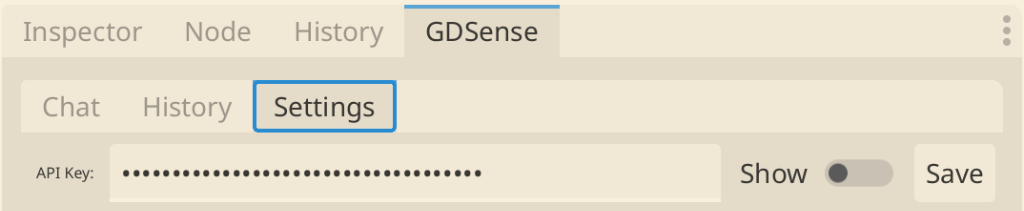
Sign in at gdsense.com, open Account, and choose Generate API Key. Copy the complete key while it is visible, because the account page shows it only once. In Godot, open the GDSense dock, choose Settings, paste the key into API Key, and choose Save. The status beneath the field confirms whether the key loaded successfully.
Make sure the account can create a key
API keys become available after Free access is approved or a subscription is confirmed by the server. If the Account page does not offer key generation yet, finish the access step shown there before configuring the plugin.
- You can sign in to the GDSense dashboard.
- Your account has Free access or an active Starter, Pro, or Ultra subscription.
- The target Godot project already has the GDSense plugin enabled.
Generate and copy the API key
- 1
Open Account
Sign in at gdsense.com and choose Account from the dashboard navigation.
- 2
Generate the key
In the API Key card, choose Generate API Key. If an active key already exists, the control reads Regenerate API Key instead.
- 3
Copy the complete value
Use the copy control while the new value is visible. Later visits show only the key prefix, not the complete credential.
Keep in mind: Regenerating replaces the active key. Any plugin still using the previous value must be updated with the newly generated key.
Save the key in the GDSense dock
- 1
Open Settings
In the right-side GDSense dock, choose the Settings tab.
- 2
Paste the key
Paste the complete value into the API Key field. The field is hidden by default; use Show only when you need to inspect it.
- 3
Save
Choose Save and wait for the status text beneath the field to update.
- 4
Return to Chat
Once the status confirms the key loaded, choose Chat and send a focused test request.
Treat the key like a password
- Do not paste the key into a chat prompt, screenshot, issue, or public message.
- Do not commit the key to the Godot project or any version-control repository.
- Regenerate the key from Account if you believe the complete value was exposed.
- Update the plugin Settings tab immediately after regenerating.