The short answer
Use Explain when you want a function described in Chat without changing it. Use Quick Edit on highlighted GDScript when you want a focused transformation with a reviewable diff. Use the Refactor gutter action when the whole function is the correct scope; it opens the same instruction, reasoning-mode, and diff workflow. Use autocomplete for inline ghost text at the caret: in Automatic mode suggestions appear as you pause, and Ctrl+Space asks for one on any line of your code, including a blank or indented line where the next statement belongs. Press Tab to insert the whole suggestion as one undoable edit, or Escape to dismiss it. Always inspect generated code and run the affected scene.
Choose the action by intent and edit scope
These actions solve different problems. Explain is for understanding. Quick Edit and Refactor are deliberate transformations with a visible comparison. Autocomplete continues the code you are writing, from the rest of a line to the next few statements. If a task must inspect or change several project files, use Agent Mode instead of stretching one code action beyond its scope.
| Action | Input scope | Result |
|---|---|---|
| Explain | A detected GDScript function | A Chat explanation; the script is not directly changed |
| Quick Edit | Highlighted GDScript | A proposed replacement shown in the review flow |
| Refactor gutter | A complete detected function | A proposed function rewrite shown in the review flow |
| Autocomplete | Code around the caret, including blank lines on Ctrl+Space | Single- or multi-line ghost text you explicitly accept or dismiss |
Explain a function in Chat
The Explain gutter action appears beside detected GDScript functions when the feature is enabled. Choosing it sends the function name and source through the GDSense request flow and places the explanation in Chat, where you can ask follow-up questions. Explain does not apply an edit to the script and uses the separately configured Explain path rather than the public reasoning mode selected in the dock.
- 1
Open the GDScript function
Use a saved or active .gd script that the editor can parse as GDScript.
- 2
Choose Explain in the gutter
The function source becomes the focused context for the request.
- 3
Ask a follow-up in Chat
Question an assumption or ask for a concrete example before changing code.

Use the explanation as a starting point
An explanation is generated guidance, not runtime proof. Compare it with Godot documentation and the actual scene. If the function depends on another script, node, signal, or autoload, attach that dependency in a follow-up rather than assuming the first answer saw it.
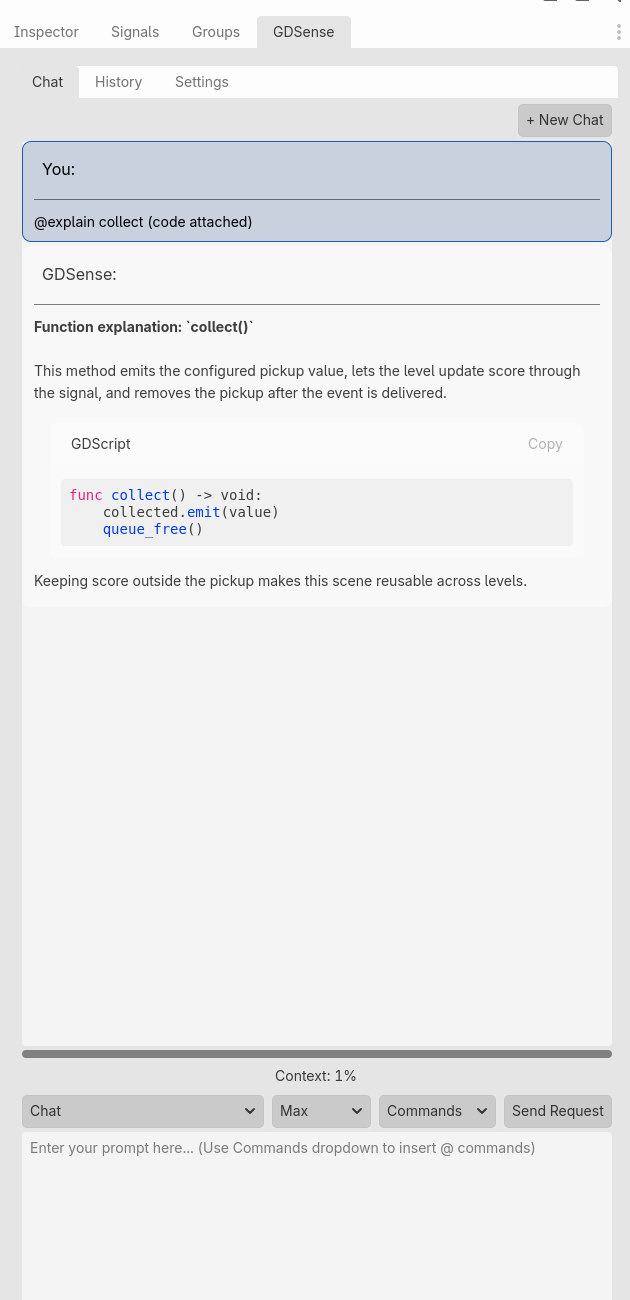
- The explanation accounts for inputs, outputs, state changes, signals, and side effects.
- Any missing dependency is attached explicitly before relying on the conclusion.
- A suggested rewrite is reviewed through Quick Edit, Refactor, or normal version-control diff.
Use Quick Edit for a selection and Refactor for a function
Highlight the exact lines you want to transform and open Quick Edit from its shortcut or the script-editor context menu. When the entire function is the correct boundary, use the Refactor gutter action. Both entry points use the same modal, reasoning-mode selection, and apply-or-reject review flow.
Refactor access begins on paid plans that include the feature. If an action is hidden, check both your account access and the plugin Settings preference for editor buttons before treating it as an editor failure.
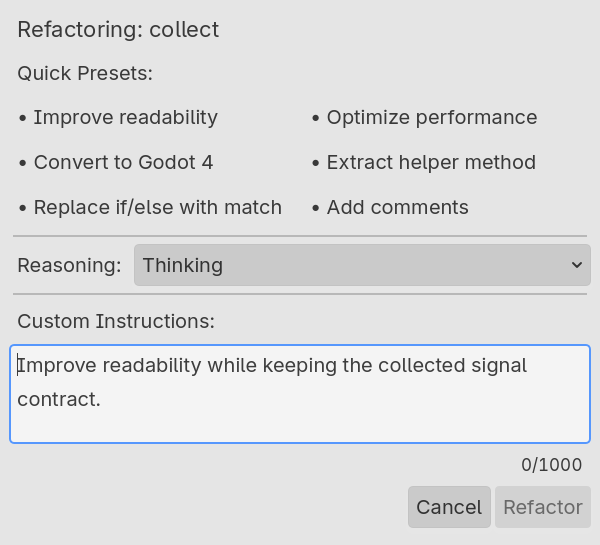
Remove the duplicated cooldown branch and keep the same return values for zero, positive, and expired cooldowns. Do not rename this function, change its parameters, or alter the signal emission order.
Describe constraints, then review the complete diff
The refactor window collects the instruction and reasoning mode before sending the selected code. When the proposal returns, the comparison view shows the original and generated versions. Apply only after reading every changed line; reject the proposal when it broadens scope or changes behavior you asked to preserve.
Keep in mind: The review flow helps prevent blind application, but it cannot test gameplay behavior. Save or commit a baseline and rerun the same scene and edge cases after applying.
Treat the diff as the approval boundary
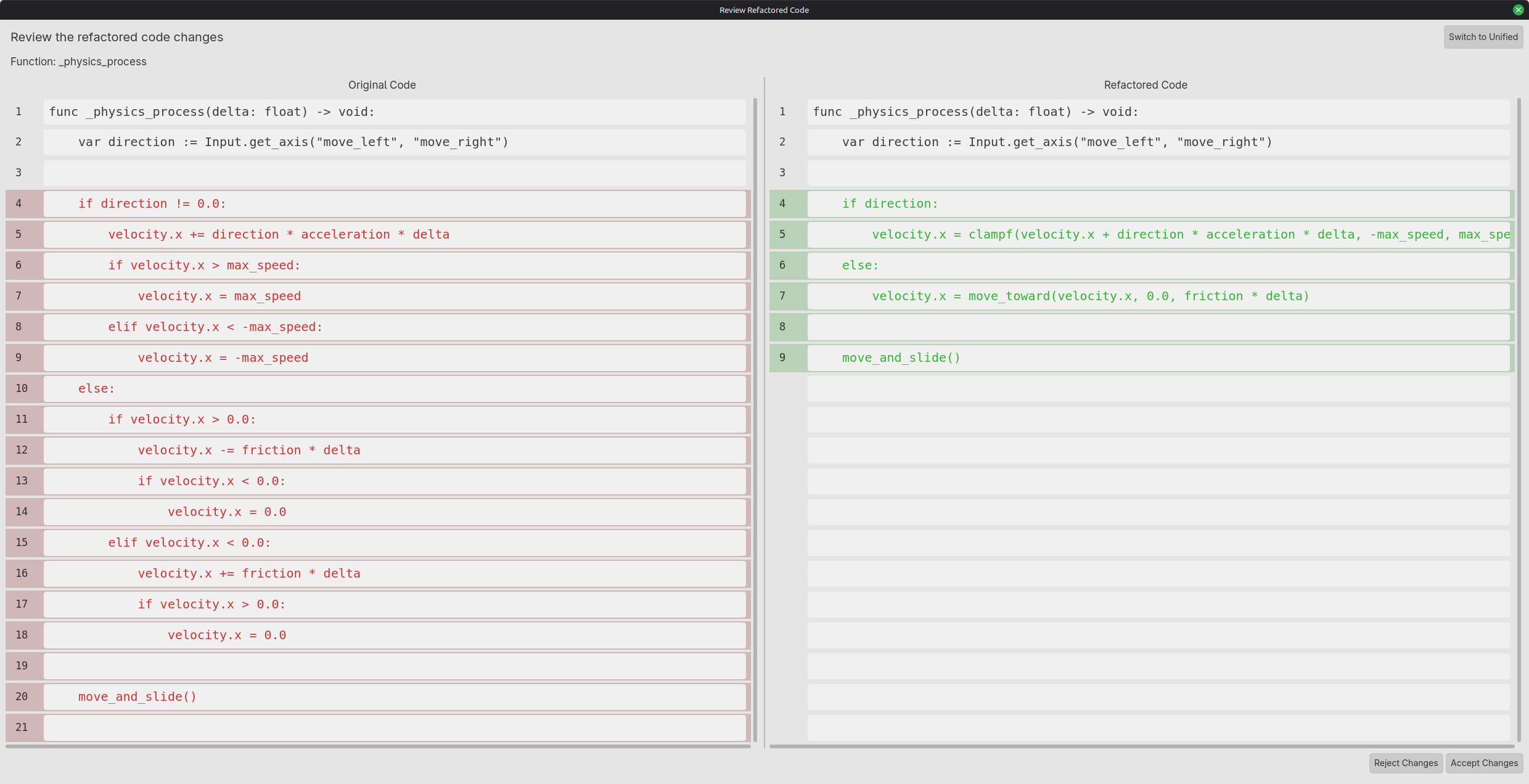
- The proposal changes only the selected block or intended function.
- Public names, signals, types, and node paths remain compatible.
- Control-flow and side-effect order still match the behavior contract.
- The script parses and the affected scene runs after application.
- Version control shows no unrelated edits.
Accept autocomplete only when the ghost text fits
Autocomplete runs in Automatic or Manual trigger mode, chosen in Settings. In Automatic mode a suggestion appears after a short pause in typing on a line that already has code; comments and strings are skipped. In either mode, press Ctrl+Space to ask for a suggestion right now, on any line. On a blank or indented line inside your code, GDSense suggests the statement that fits there, at the indentation the block expects.
Suggestions can span several lines and appear as ghost text at the caret. Press Tab to insert the whole suggestion as one edit, so a single undo removes it, or press Escape to dismiss it. Moving the caret or typing other text also dismisses a stale suggestion. When line wrapping is on, the preview shows the first line with a marker for the additional lines Tab will insert.
Autocomplete does not use res://AGENTS.md or charge account credits; it is tracked against a separate monthly autocomplete cap. Keep the surrounding function readable and treat every accepted completion like code you typed: inspect types and node assumptions, then run the script.
- The suggestion matches the current indentation and GDScript syntax.
- Referenced methods, nodes, and signals exist in this project.
- Accepting the suggestion does not duplicate code already below the caret.
- A multi-line suggestion ends where the block should end, and one undo reverts it cleanly.
- The affected scene still behaves correctly after the insertion.