The short answer
Open History to view recent and favorite Chat and Agent conversations. Select an entry to preview or load it, then continue it from Chat; an Agent entry resumes through the next Agent message when your plan supports Agent Mode. Favorite important entries before older recent items age out, rename them for retrieval, and export only when you intend to create a portable JSON copy. Plugin history is stored locally as plain JSON and can include full prompts, responses, enhanced context, and Agent summaries. It is not described as encrypted or cloud-synced.
Use Recent for active work and Favorites for keepers
The History tab separates recent entries from favorites. Recent history has a local cap, so older non-favorite sessions can be evicted as new work is saved. Favorites are stored separately with a larger safety cap. Rename an entry when the first prompt is not a useful label.
Every saved answer keeps the reasoning mode it was requested with and the model details the service reported for it, so a conversation that switched modes still labels each answer correctly. A thumbs-up or thumbs-down rating stays tied to the exact answer you rated, including after you reload the conversation.
Chat and Agent entries share the same local history store but carry different state. An Agent conversation can show whether it is active, waiting for your reply, failed, archived, or currently running. A live Agent run must be stopped before switching or deleting its conversation.
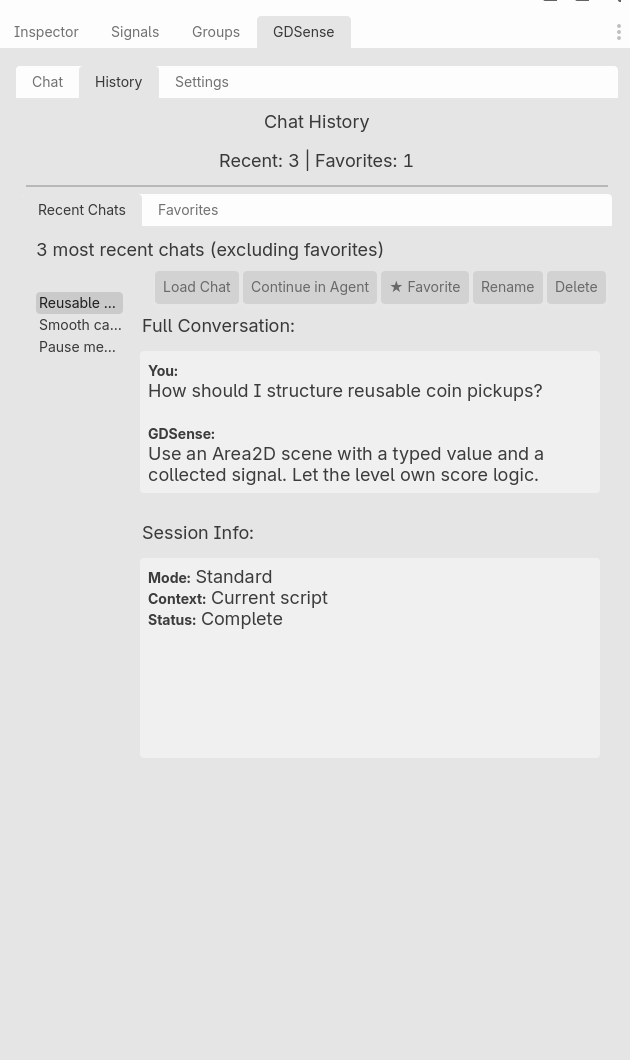
Choose the history action that matches your intent
| Action | What it does | Important caution |
|---|---|---|
| Load | Renders the saved transcript and makes it the active conversation | Loading another conversation changes which thread the next message uses |
| Favorite | Moves an entry out of the capped Recent list | Favorites are still local data, not cloud backup |
| Rename | Stores a custom local display name | Names can reveal project details on a shared machine |
| Export | Writes the selected entry and metadata to a portable JSON file | The export can contain full conversation and context content |
| Import | Validates and adds a compatible exported JSON entry | Review the file source and contents before importing |
| Delete or clear | Removes selected or grouped entries from the active history store | Local backup or exported copies can still exist separately |
Load a Chat session before sending the next follow-up
- 1
Select the entry
Choose a recent or favorite Chat entry and read its preview before loading it.
- 2
Load the conversation
The plugin rebuilds the visible transcript and restores the conversation’s pinned scripts, its summary of older messages, and its record of what it has already seen, so the next message picks up where the conversation left off.
- 3
Check whether the evidence is still current
An open script that changed since the saved conversation is sent again automatically. Attach a fresh selection or scene when those changed too.
- 4
Send the follow-up
The next Chat message continues with the loaded conversation history.
Keep in mind: A loaded transcript can contain old code or assumptions. Continuing a session does not automatically refresh every attachment.
Resume an Agent conversation intentionally
Loading an Agent entry renders its transcript and arms that conversation so the next Agent message continues it. A waiting-for-you entry expects your answer. A failed entry starts a fresh run inside the same conversation. Continuing requires current Pro or Ultra access; otherwise the entry remains readable locally.
The main user prompt and AI response bodies are not stored in the server’s request/conversation tables. Prompt-request log records can, however, retain custom rules and the system prompt used for a request alongside usage, status, routing, and attachment metadata. If an old server-side conversation has expired, the plugin can start a fresh server conversation while keeping the local transcript visible. Review the current Privacy Policy for retention and deletion terms, then check the recap and project state before continuing old work.
- No other Agent run is active.
- The loaded entry is the conversation you intend to continue.
- The project still matches the scripts and scenes discussed in the transcript.
- Your next message answers any waiting-for-you question or states the new bounded task.
Promote a Chat conversation only when its context should carry forward
A saved Chat entry can be promoted into an Agent conversation. Promotion is one-way. The first Agent send uses the prior Chat as seed context, after which the history entry follows Agent conversation behavior.
The Chat established the expected signal contract and selected a design. Promote it, then send: "Implement the agreed option only in the two discussed scripts, preserve the named signals, and run the reproduction check."Keep in mind: Start a fresh Agent conversation instead when the Chat contains unrelated exploration, stale attachments, secrets, or alternatives you no longer want treated as context.
Treat local history and exports as sensitive project data
The plugin writes history to user://chat_history.json and maintains user://chat_history_backup.json for save recovery. Stored exchanges can include the displayed prompt, AI response, enhanced user message with attached context, each answer’s mode and model details, pinned open-script snapshots, the summary of older messages in a long conversation, and bounded Agent tool summaries. The record of which scripts and project map a conversation has already received holds only paths and fingerprints, never file contents. The files are ordinary local JSON; GDSense does not claim local history encryption or cloud synchronization.
An exported session is another full-content copy that you control. Store it only where intended, inspect it before sharing, and delete extra copies under your operating system’s normal file-management process. Clearing the History UI, disabling GDSense, or removing res://addons/gdsense does not by itself delete both user:// history files or exported copies.
- Do not put API keys, passwords, private tokens, or regulated data in conversations.
- Review an export for private code and context before sending it to another person.
- Clear unneeded local entries on shared machines.
- For sensitive cleanup, remove both user://chat_history.json and user://chat_history_backup.json plus intended exported copies.