The short answer
Download the GDSense plugin ZIP from your account, extract it so your project contains res://addons/gdsense/plugin.cfg, then enable GDSense under Project → Project Settings → Plugins. A successful install adds the GDSense panel to the upper-right editor dock. The current download requires Godot 4.3 or later.
Check the project and account first
Install GDSense separately in each Godot project where you want to use it. The distributable contains the addons/gdsense directory that Godot recognizes as an editor plugin.
- Open the target project in Godot 4.3 or later.
- Use an account with Free access or an active Starter, Pro, or Ultra subscription.
- Save or commit current project work before adding any editor plugin.
Download the current plugin ZIP
- 1
Open Download Plugin
Sign in at gdsense.com and open Download Plugin from the dashboard navigation.
- 2
Generate the one-time link
Choose Generate Download Link. The displayed link expires after five minutes and can be used once.
- 3
Download the ZIP
Use the Download button while the link is active. Generate another link if the first one expires before use.
Put the plugin in the correct folder
Extract the ZIP into the Godot project directory. The important check is the final resource path, not the name of the folder where your browser saved the archive.
- 1
Find or create addons
At the project root—the folder containing project.godot—find or create addons/.
res://addons/ - 2
Copy the GDSense directory
Place the extracted gdsense directory directly inside addons. Avoid an extra ZIP-name directory between addons and gdsense.
res://addons/gdsense/ - 3
Verify the plugin manifest
Confirm that Godot can see plugin.cfg at this exact path before trying to enable the plugin.
res://addons/gdsense/plugin.cfg
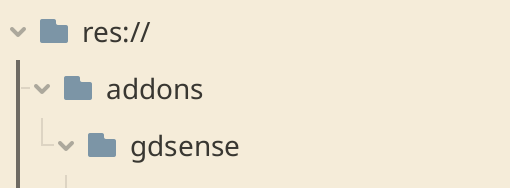
Keep in mind: If the path is res://addons/some-zip-folder/addons/gdsense, move the inner gdsense folder up to res://addons/gdsense.
Enable GDSense in Godot
- 1
Open the Plugins screen
In Godot, choose Project → Project Settings → Plugins.
- 2
Enable GDSense
Find GDSense in the list and enable it.
- 3
Confirm the dock
Close Project Settings and look for the GDSense panel in the upper-right editor dock.
- The plugin appears in Project Settings → Plugins.
- Its status is enabled.
- The GDSense dock exposes Chat, History, and Settings tabs.