The short answer
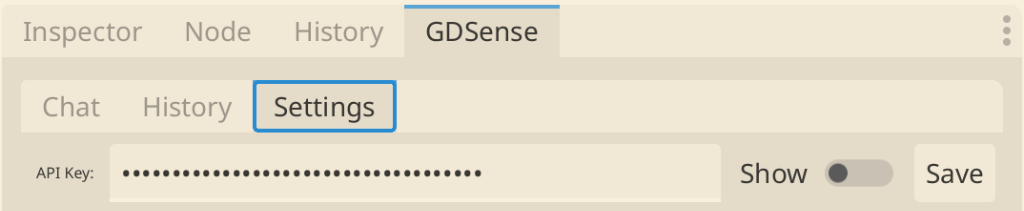
Open GDSense Settings, paste the complete active API key, choose Save, and read the local status. Saving or loading a key does not by itself prove server authentication, so return to Chat and send a small test request. If it fails, check Account for an active key and access state, confirm the key was not regenerated, and inspect the exact plugin error. Regenerating a key revokes the previous one immediately; replace it in every plugin that used it. Never send the key to support—share only the sanitized error plus any request or Agent session ID shown.
Save the key locally, then test authentication separately
The Settings field stores the credential used by plugin requests. Its status can confirm that a value was loaded into the plugin configuration, but only a request to the service can confirm that the key is active, belongs to an account with access, and can authenticate now.
- 1
Copy the active key from Account
Use the complete value shown at generation time. Later Account visits show only a masked prefix.
- 2
Paste and Save in Settings
Avoid leading or trailing whitespace and wait for the local status to update.
- 3
Send a minimal Chat request
Use Standard with no attachment so key and connection errors are easier to isolate.
- 4
Read the exact error
Keep the error category and any request ID, but redact credentials and private project content.
Map the error to the correct layer
| Symptom | Likely cause | Action |
|---|---|---|
| Invalid or unauthorized key | Truncated, mistyped, revoked, or previously regenerated key | Generate or copy the active key and replace the saved value |
| Access forbidden or consent required | Account access, subscription state, or updated legal terms need attention | Sign in to Account and follow the displayed action |
| Rate or credit limit reached | Current plan limit or remaining balance | Check Account usage and wait for the stated reset or change plan |
| Timeout, DNS, TLS, or connection failure | Local network, proxy/firewall, or temporary service reachability | Check connectivity and retry after isolating the network issue |
| Server error | Temporary service-side failure | Retry once later and report the sanitized error/request ID if it persists |
Replace a key everywhere after regeneration
GDSense follows a single-active-key policy. Regenerate API Key revokes the current key and creates a new one. Any Godot project or machine still configured with the prior value will fail authentication even if its Settings status says a key is loaded.
- Copy the new complete key while Account shows it.
- Update every intended GDSense installation that used the old key.
- Do not keep the key in project files, source control, screenshots, or notes shared with others.
- Run one minimal authenticated request from each installation you still use.
Keep in mind: Do not regenerate repeatedly while diagnosing a network outage. Each regeneration invalidates the value you just distributed to other installations.
Verify account and subscription state on the website
API keys become available only when the account has Free access or a server-confirmed paid subscription. Account is authoritative for the access type, paid subscription status, credit usage, and renewal or access-until date. A checkout return that is still awaiting server confirmation has not granted access yet.
If the plugin reports that updated Terms or Privacy acceptance is required, sign in at gdsense.com, review and accept the current versions, then retry. Do not work around the block by generating another key.
Open GDSense AccountIsolate connection failures without exposing project data
A timeout or connection error can occur before authentication. Confirm that the machine can reach the GDSense website, check whether a VPN, proxy, firewall, or filtered network is blocking the API, and retry from a known working connection when possible. A missing dock is a plugin-load issue and should be fixed before network diagnosis.
- 1
Remove attachments from the test
Use a tiny prompt so context size and project-file parsing are not additional variables.
- 2
Try one controlled retry
Retry after the network is stable; avoid rapid repeated requests.
- 3
Capture safe diagnostics
Record the time, plugin and Godot versions, error text, and request or Agent session ID.
Send support diagnostics, never credentials
- Include the supported Godot version and installed GDSense release.
- Include whether the failure affects Chat, Agent, autocomplete, or every request.
- Include the sanitized error text and any request or Agent session ID shown.
- Include whether Account shows Free access or an active paid subscription.
- Do not include the API key, password, session token, private code, or an unreviewed history export.