The short answer
First confirm that the project is open in Godot 4.3 or later and contains res://addons/gdsense/plugin.cfg. Open Project → Project Settings → Plugins and enable GDSense. If it is already enabled, disable it, enable it again, and restart the editor while watching Output for a script, parse, or dependency error. A missing dock is an installation or plugin-load problem, not an API-key problem. If files are incomplete or mixed between releases, replace the entire gdsense addon directory with a fresh current download instead of merging folders.
Verify the exact addon path before changing settings
Godot discovers an editor plugin through plugin.cfg. The GDSense manifest must be directly under res://addons/gdsense. An extra archive directory can leave the manifest nested too deeply, so the plugin never appears in Project Settings.
res://addons/gdsense/plugin.cfgres://addons/gdsense-download/addons/gdsense/plugin.cfg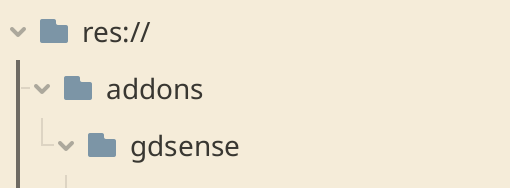
- project.godot and addons/ belong to the same project root.
- The directory is named gdsense and contains plugin.cfg.
- The download was fully extracted rather than opened in place from the ZIP.
Enable or reload GDSense from Project Settings
- 1
Open the Plugins screen
Choose Project → Project Settings → Plugins in the affected project.
- 2
Find GDSense
If it is absent, return to the addon-path check; Godot has not discovered the manifest.
- 3
Enable the plugin
Turn GDSense on. A successful load adds its panel to the upper-right editor dock.
- 4
Reload when already enabled
Disable GDSense, enable it again, then restart Godot if the dock still does not appear.
Keep in mind: Save project work before reloading an editor plugin. Do not repeatedly toggle it while a GDSense Agent run is active.
Use Godot Output to identify a load failure
When Godot discovers the plugin but cannot load one of its scripts or resources, the Output and debugger panels provide the actionable evidence. Read the first GDSense-related parse, script, missing-file, or dependency error rather than treating later cascading messages as separate causes.
| Symptom | Likely layer | Next check |
|---|---|---|
| GDSense absent from Plugins | Folder layout or missing plugin.cfg | Verify res://addons/gdsense/plugin.cfg |
| GDSense listed but cannot enable | Script/resource load failure | Read the first error in Output |
| Enabled but dock absent | Plugin startup or stale editor state | Reload the plugin and restart Godot |
| Dock visible but requests fail | Key, access, network, or service connection | Use the API key and connection troubleshooting article |
Replace incomplete or mixed release files
The plugin checks for a newer public release and can show an update banner. To update manually, download the current ZIP from your GDSense account. Disable the installed plugin, close Godot, replace the complete res://addons/gdsense directory, reopen the project, and enable GDSense again. Do not merge a new release over an unknown set of old files because removed scripts can remain behind.
- 1
Save and disable
Save the project and disable GDSense under Project Settings → Plugins.
- 2
Close Godot
Exit the editor so plugin scripts are not active while files are replaced.
- 3
Install one complete release
Use the full gdsense directory from the current official download.
- 4
Reopen and verify
Enable the plugin and confirm Chat, History, and Settings appear in the dock.
Uninstall without confusing addon files and local user data
To uninstall, save work, stop any Agent run, disable GDSense in Project Settings, close Godot, and remove only the project’s res://addons/gdsense directory using your normal file manager or version-control workflow. Reopen the project and confirm GDSense is no longer listed.
Godot user:// data is separate from the addon directory. Both user://chat_history.json and user://chat_history_backup.json can remain after the addon is removed, and any history exports remain wherever you saved them. Clearing History, disabling the plugin, or removing res://addons/gdsense alone is therefore not complete privacy cleanup. Delete both local history files and intended exported copies through your operating system when sensitive content must be removed, and regenerate the account API key if you are retiring a machine or believe the saved credential was exposed.
Keep in mind: Do not remove the entire addons directory; other editor plugins may live there.